💻 Website
The full desktop experience — a floorplan you walk an avatar around, with desks, meeting rooms, and everyone's live status.
1Signing up / logging in
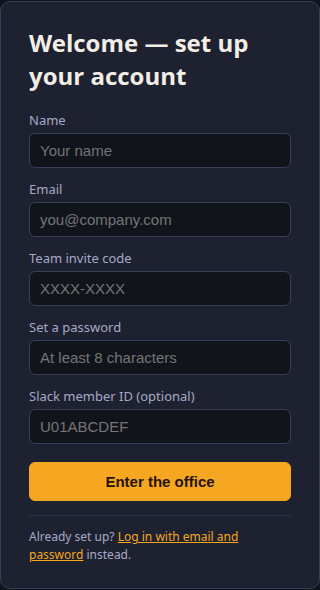
The first time, click "Set up your account with an invite code" on the login screen. You'll need:
- Your name and a real email address (used to log back in later — no confirmation email is sent, it's just your username)
- The team's shared invite code — ask whoever set up your workspace
- A password (at least 8 characters)
After that first signup, just log in with your email and password — the invite code isn't needed again.
2Getting around
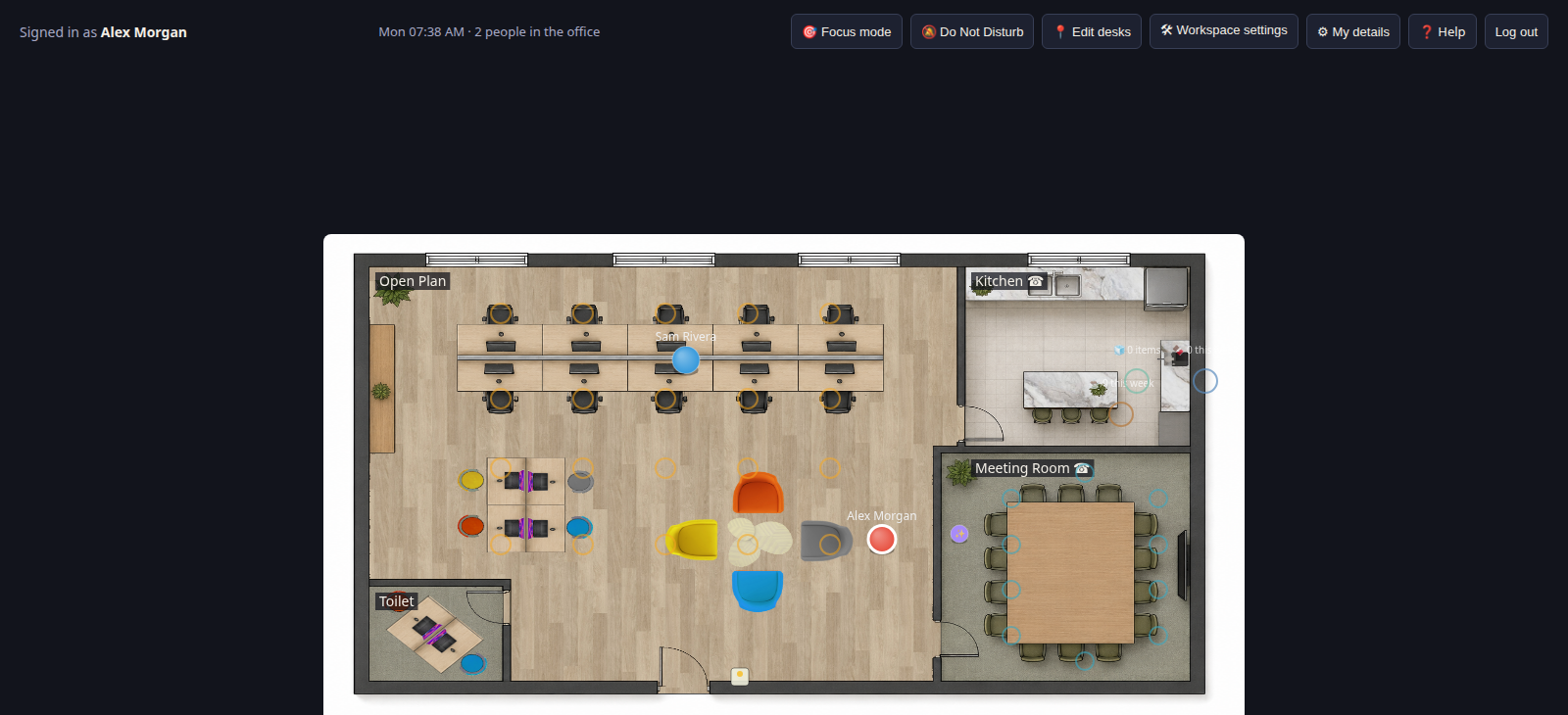
Click anywhere on the floor to walk your avatar there — it'll route around desks, walls and furniture automatically rather than cutting straight through them.
Click a room's name label (top-left corner of a room) to open that room's video call link or chat channel, if one's set up.
Click a colleague's avatar to open a menu: instant chat, instant call, or "Ask if free…" (sends them a request they can accept or decline).
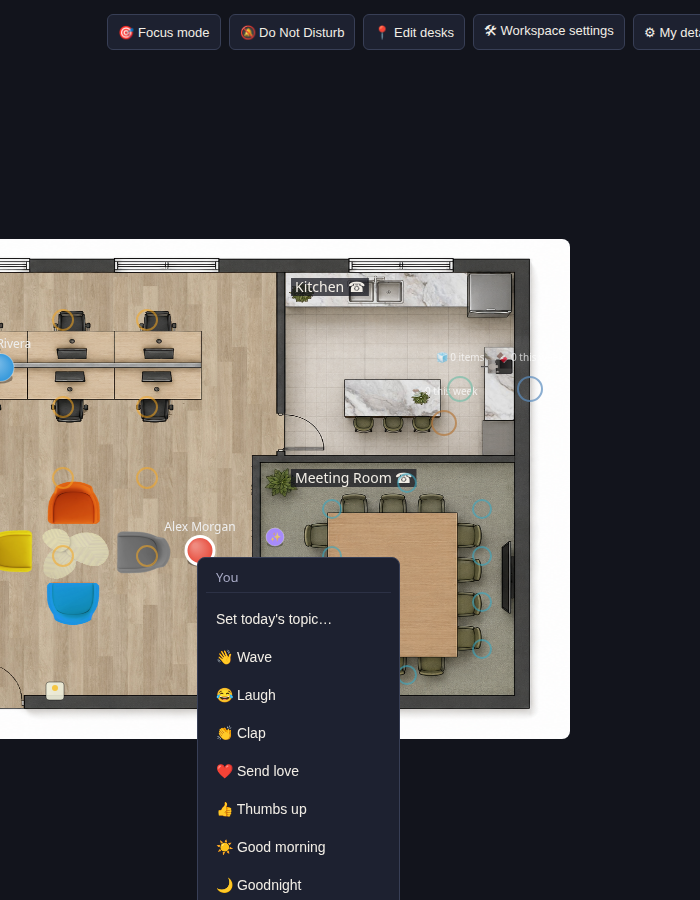
Click your own avatar to set today's topic, or send a reaction that everyone currently in your room will see (see Reactions below).
3Claiming a desk
Click any empty desk to sit there and claim it for the rest of the day — your avatar walks over and faces the right direction once seated. Right-click a claimed desk you're sitting at for a "Get up" option.
Some desk banks may be reserved for a specific sub-team — you'll only be able to claim desks your team is allowed to sit at.
4Do Not Disturb & Focus mode
Both toggle from the top bar:
| Mode | What it does |
|---|---|
| 🔕 Do Not Disturb | Greys out your avatar with "(DND)", mutes toasts for you, and auto-declines any "Ask if free…" requests sent your way. |
| 🎯 Focus mode | Mutes join/leave/claim toasts for you, but colleagues can still reach you normally — softer than DND. |
5Reactions
Click your own avatar to open the reaction menu — 👋 wave, 😂 laugh, 👏 clap, ❤️ send love, 👍 thumbs up (send these at a specific colleague by clicking their avatar instead), plus three room-wide ones: ☀️ Good morning, 🌙 Goodnight, ☕ Suggest a coffee break.
A room-wide reaction shows a floating emoji over your avatar and a bottom-left toast for everyone currently standing in the same room — including a confirmation toast for you.
6My details
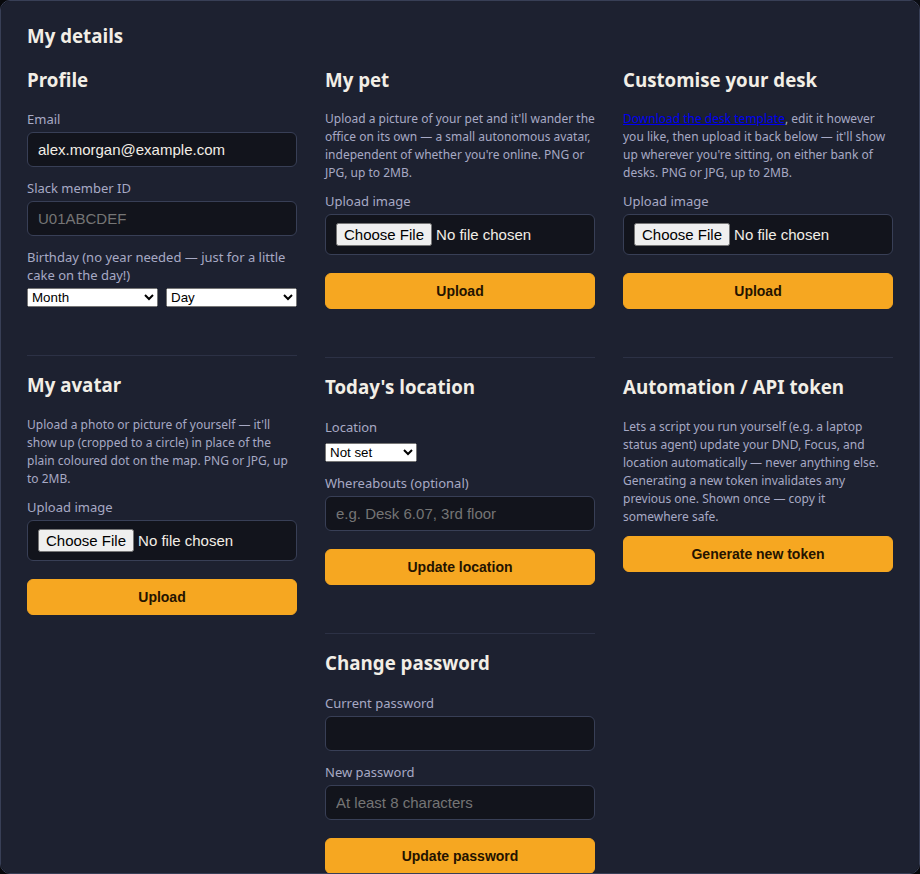
Click "⚙ My details" in the top bar to manage your profile:
- Avatar & desk image — upload a photo to replace the flat colour dot, and a separate image shown on whichever desk you're sitting at
- Pet — upload a photo and a small autonomous pet avatar starts wandering the office on your behalf, independent of whether you're logged in
- Birthday — month + day only (no year); on the day, your avatar gets a small birthday decoration everyone can see
- Today's location — set where you're working from (shown to colleagues when they click your desk); resets each day
- Change password
- API token — for the automation script, see the Automation section below
7Admin tools Admin only
If you're an admin, you'll also see:
- 📍 Edit desks — drag desks/meeting seats to reposition them, right-click to delete or rotate a desk 90°, resize room boundaries by dragging their corner handle
- 🛠 Workspace settings — floorplan image upload, the walkable-zone mask that controls where people can walk (see the note below), maintenance mode, sub-teams, and per-person team assignment
📱 Mobile mode & PWA install
A lightweight "who's in the office" card view built for phones — same account, same live data, much simpler UI than the full floorplan.
1Getting to mobile mode
Visiting the site on a phone (screen narrower than 700px) redirects you there
automatically — there's nothing to opt into. If you ever want the full desktop map on
your phone instead, open /?desktop=1.
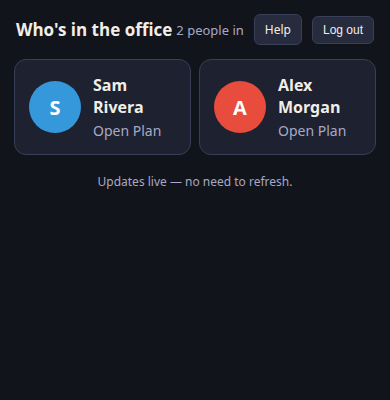
2What you can do
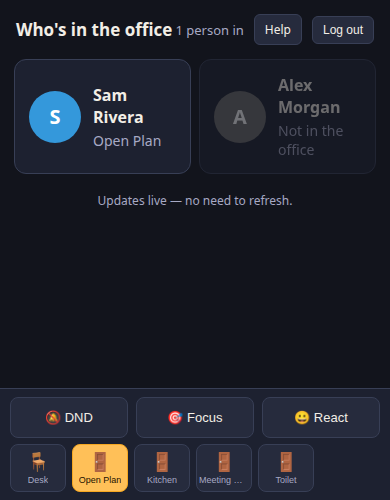
- See a card for everyone signed up — online people shown live, offline people dimmed with "Not in the office"
- Each card shows live location (only trusted as "at your desk" when you're actually near it right now, not just a stale claim from earlier), DND/Focus badge, and today's topic
- Bottom action bar: 🔕 DND, 🎯 Focus, 😀 React (opens a picker sheet), and one-tap move-to icons — your desk plus every room
3Installing as an app (PWA)
Installing adds an icon to your home screen that opens straight to the office — no browser chrome, feels like a native app. It's the same page, just launched differently; no extra login step.
📱 iPhone / iPad (Safari)
- Open the site in Safari (must be Safari, not Chrome, for the install option to appear)
- Tap the Share icon (square with an arrow pointing up)
- Scroll down and tap "Add to Home Screen"
- Tap Add in the top-right
🤖 Android (Chrome)
- Open the site in Chrome
- Tap the ⋮ menu (top-right)
- Tap "Add to Home screen" or "Install app"
- Confirm by tapping Add / Install
🐍 Python automation script
A self-service API token lets an external script update just your status (DND/Focus) and location — useful for something like a laptop agent that toggles DND when your calendar shows you're in a meeting, without needing a browser session.
requests library, or
any HTTP client) that calls these endpoints.
1Generate an API token
In My details, find the API token section and click "Generate new token". The token is shown once, in full — copy it somewhere safe immediately, it can't be viewed again. Generating a new token invalidates the previous one; "Revoke token" clears it without replacing it.
2What the token can do
The token is deliberately narrow — it's not equivalent to being logged in. It only authorizes two endpoints:
| Endpoint | Purpose |
|---|---|
PUT /api/me/status | Set Do Not Disturb and/or Focus mode |
PUT /api/me/location | Set today's location (building + optional detail) |
3Authenticating requests
Send the token as a bearer token in the Authorization header:
Authorization: Bearer <your-token-here>4Setting DND / Focus
PUT /api/me/status — body is JSON, both fields optional (send only the
one(s) you want to change):
{ "dnd": true, "focus": false }Example with curl:
curl -X PUT https://virtualoffice.tcnservices.uk/api/me/status \
  -H "Authorization: Bearer <your-token-here>" \
  -H "Content-Type: application/json" \
  -d '{"dnd": true}'
Example in Python:
import requests

TOKEN = "your-token-here"
BASE = "https://virtualoffice.tcnservices.uk"

requests.put(
    f"{BASE}/api/me/status",
    headers={"Authorization": f"Bearer {TOKEN}"},
    json={"dnd": True},
)
Response: {"ok": true, "dnd": true, "focus": false} — reflects your
current status after the update.
5Setting your location
PUT /api/me/location — building is required and must be
one of: "Waterloo", "Manchester", "Home".
detail is optional free text (max 60 characters, e.g. a desk number).
{ "building": "Home", "detail": "Working from the kitchen table" }Example in Python:
requests.put(
    f"{BASE}/api/me/location",
    headers={"Authorization": f"Bearer {TOKEN}"},
    json={"building": "Home", "detail": "Desk 6.07"},
)6Error responses
Both endpoints return standard JSON errors on failure:
| Status | Meaning |
|---|---|
401 | Missing/invalid/revoked token |
400 | Bad request body (e.g. invalid building value) |
{ "error": "Not signed in." }