Click anywhere on the floor to walk there. Click a room's name label to open its Teams call/Slack channel. Click a colleague to chat, call, or ask if they're free.
Desk image size:Drag a desk or seat to move it. Right-click a desk or seat to delete it, or to rotate a desk 90°. (Size setting applies to all customisable desks — orange dots are chairs, amber boxes are image boundaries, teal dots are meeting seats. Dashed cyan outlines are room boundaries — drag inside a room to move it, drag its corner handle to resize.)
My details
Profile
My avatar
Upload a photo or picture of yourself — it'll show up (cropped to a circle) in
place of the plain coloured dot on the map. PNG or JPG, up to 2MB.
My pet
Upload a picture of your pet and it'll wander the office on its own — a small
autonomous avatar, independent of whether you're online. PNG or JPG, up to 2MB.
Today's location
Change password
Customise your desk
Download the desk template, edit it
however you like, then upload it back below — it'll show up wherever you're sitting,
on either bank of desks. PNG or JPG, up to 2MB.
Automation / API token
Lets a script you run yourself (e.g. a laptop status agent) update your DND,
Focus, and location automatically — never anything else. Generating a new token
invalidates any previous one. Shown once — copy it somewhere safe.
Workspace settings
Slack
Needed for the "Instant chat (Slack)" button to work for everyone. Find it in any
slack.com URL while using your workspace — it's the part starting with "T", e.g.
app.slack.com/client/T0123ABCD/...
Office closed
While on, only you and the "Claude" test account can log in or sign up —
everyone else sees a "being updated, check back shortly" message. Anyone
already signed in elsewhere stays blocked too, even with a valid session.
Useful for trying out a big batch of changes before the whole team sees them.
Takes effect immediately, no restart needed.
Sub-teams
Any customisable desk can be reserved for one of these teams — assign desks to
a team from the "Edit desks" screen. Removing a team here doesn't move anyone
off it automatically; their desks just become unrestricted again.
Floorplan
Replace the office artwork (PNG, up to 8MB). Desk and meeting-seat positions are
set separately in "Edit desks" and aren't moved automatically — if the new image
is laid out differently, positions will likely need re-dragging afterwards.
Walkable zones
Paint a PNG the same size as the floorplan (940×500) with green over anywhere
people should be able to walk and red over anywhere blocked (walls, furniture,
outside the office). Movement — both clicking to walk and the mobile "Move to…"
buttons — routes around red zones instead of cutting straight through them.
Unpainted/transparent areas default to walkable, so a rough first pass is safe.
People
Change which sub-team each person belongs to — this controls which
customisable desks they're allowed to claim.
Users
No email sending is set up for this app, so there's no "forgot password" self-service
flow. If someone's locked out, generate a reset link here and send it to them yourself
(Slack, in person, etc.) — it works without them needing to log in, expires after one
hour, and can only be used once.
Scheduled overlays
Images drawn on top of the floorplan (desks/people still show through) whenever today
falls within their date range. Flag one as a "hotspot" to make it clickable — currently
only "cake" is wired up, used for the birthday cake interaction.
Add overlay
Existing overlays
Editing one previews it live on the map behind this panel, even outside its date
range, so you can position it before it goes active.
Layouts
One layout is "active" at a time — everyone connected sees it. Floorplan, walkable
zones, desks, rooms, and overlays are all edited via the existing tools (Floorplan,
Walkable zones, Edit desks, Overlays), which always act on whichever layout is
currently active — switch to a layout first, then use those tools to build it out.
Switching broadcasts to everyone immediately and snaps them to the new layout's spawn
point.
Existing layouts
New layout
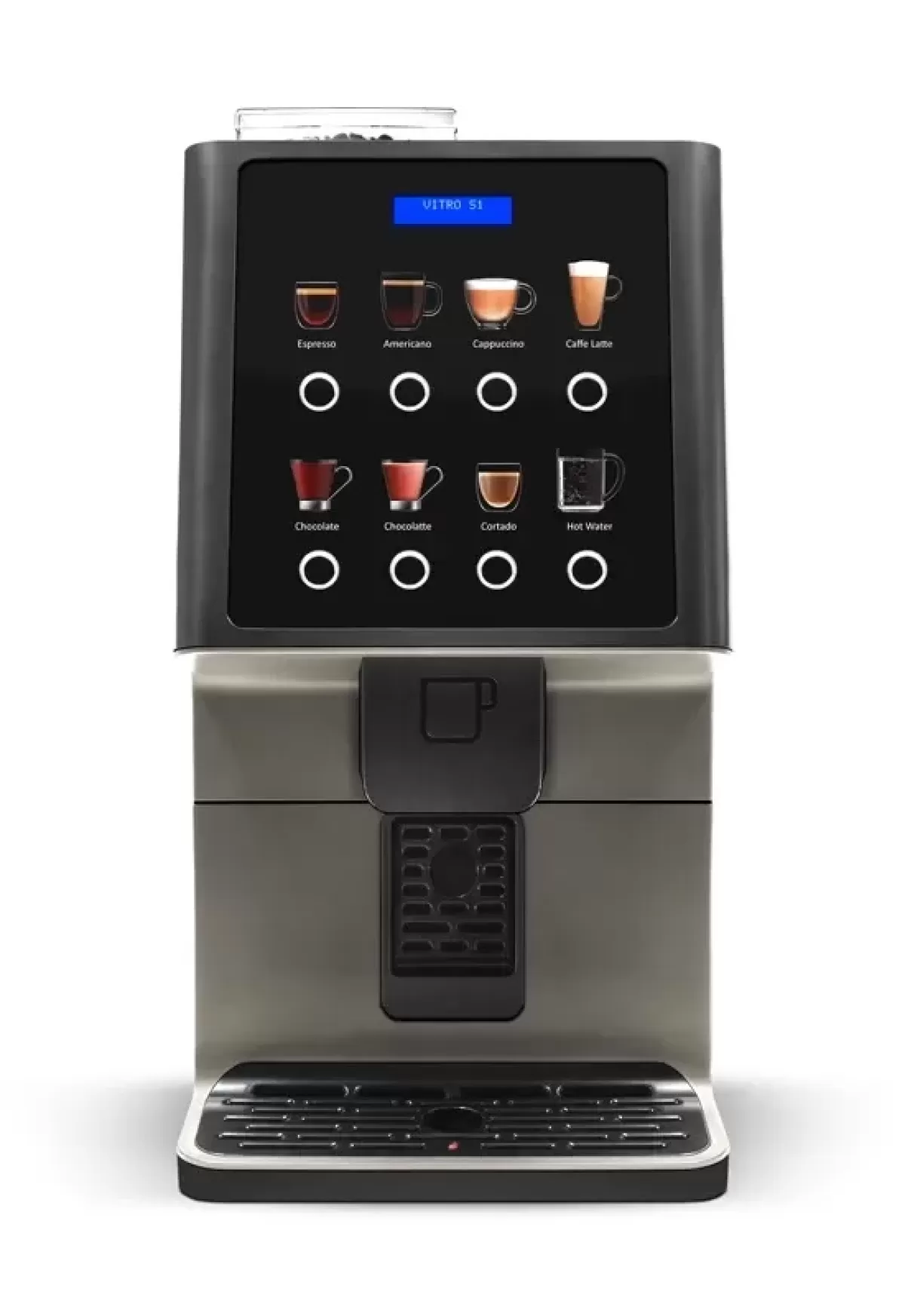
Appliances (active layout)
Check to add an appliance to the currently active layout at a default centre
position — drag it into place afterwards from "Edit desks". Uncheck to remove it.
Where are you today?
What are you working on today?
Shown as a small label next to your name — totally optional, leave it blank to clear it.